Guide
How to Run Multiple CLI Coding Agent Sessions at Once
The most direct way to run multiple CLI coding agent sessions at once is a terminal grid app that keeps every session visible and running in parallel, instead of switching tabs or windows. PaneCrew does this natively: a grid of up to four real, independent terminal panes — pick the layout that fits (2×2, a row of three or four, one pane split off larger than the rest, and more) with one click in the status bar — each running its own agent session — Claude Code, Codex, Gemini CLI, GitHub Copilot CLI, OpenCode, or a plain shell — with a file explorer that automatically follows whichever pane currently has focus.
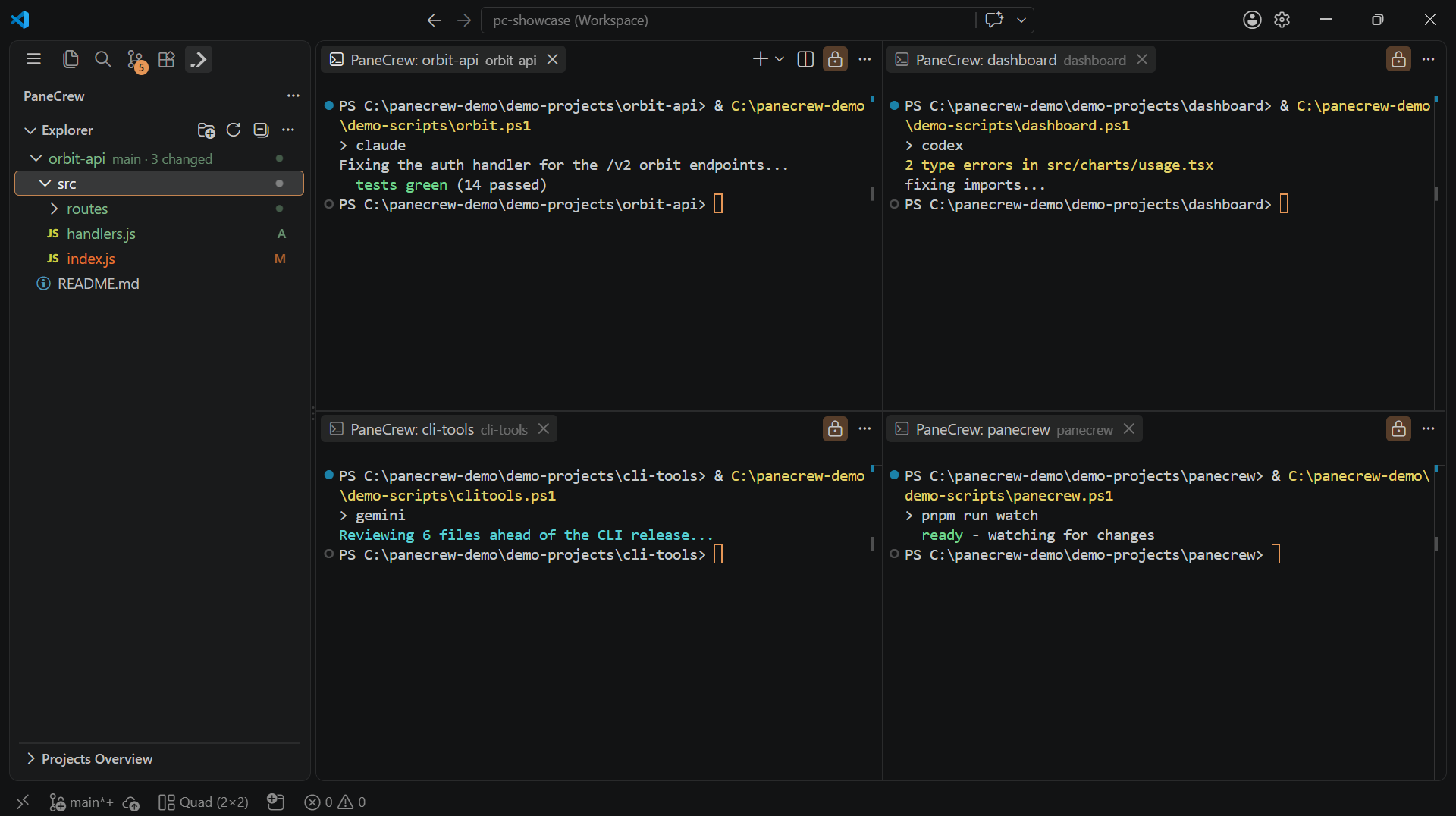
A real PaneCrew grid: four separate agent sessions, all on screen at once, no tab to switch.
Why tab-switching breaks down with multiple agent sessions
A single terminal window with tabs hides every session but the active one — which is fine for a single task, but not when several coding agents are working on different projects at once. You lose track of which one just finished, which one is waiting on you, and which project's files you're even looking at. A grid of real, simultaneously visible panes avoids that entirely: every session stays on screen, all the time.
Frequently asked questions
Can I run multiple Claude Code sessions at once?
Yes — Claude Code itself is a single CLI process per terminal, so running several sessions at once means running several terminal instances side by side. PaneCrew gives you a grid of up to four real terminal panes for exactly that — pick from several layouts (2×2, a row of three or four, and more) from the status bar — and the same approach works for Codex, Gemini CLI, GitHub Copilot CLI, OpenCode, or any other CLI coding agent.
How do I orchestrate multiple coding agent sessions across different projects?
Open one pane per project folder — PaneCrew's file explorer follows whichever pane has focus, so you always see the right project tree without extra tab-switching or manual cd bookkeeping.
Do I need a terminal multiplexer like tmux for this?
No — a multiplexer splits one terminal into panes you still navigate with keyboard shortcuts. PaneCrew keeps every pane simultaneously visible in a real window grid, so nothing is ever hidden behind a tab.
How do I manage multiple Claude Code sessions without losing track?
Keep every session visible instead of switching tabs — PaneCrew's grid shows all active Claude Code sessions at once, with a file explorer that follows whichever pane has focus.
Can I run multiple Claude Code sessions in VS Code?
Yes — VS Code's own integrated terminal supports multiple tabs, but only one is visible at a time. The PaneCrew extension arranges terminals across VS Code's editor-group layout instead, keeping up to four Claude Code sessions simultaneously visible in a real grid.
Running one agent session per project? See how to open multiple terminal windows at once for spreading work across several independent PaneCrew windows instead of one grid. Not sure how many sessions is actually worth running at once? See how many Claude Code sessions to run at once. Running several agents against the same repo? See how to prevent multiple coding agents from editing the same files.
PaneCrew is a free, open-source (MIT) VS Code extension — a grid of real terminal panes across a multi-root workspace, with a focus-following file explorer.
Get PaneCrew