Install & run
PaneCrew is a VS Code extension — install it into VS Code, no separate download or native toolchain required.
From the Marketplace
Search for "PaneCrew" in the Extensions view (⌘⇧X / Ctrl+Shift+X), or run:
ext install silvio-lindstedt.panecrewOr install directly from theMarketplace listing.
From a .vsix file
Build the extension from source:
git clone https://github.com/silvio-l/panecrew.git
cd panecrew
pnpm install
pnpm --filter panecrew --dir apps/extension run package
That produces apps/extension/panecrew-0.1.2.vsix. Install it with:
code --install-extension panecrew-0.1.2.vsixOr via the Extensions view: the ··· menu → "Install from VSIX…".
Requirements
- VS Code
^1.90.0or newer. - Any OS VS Code itself runs on — the extension has no native platform-specific code of its own; it works entirely through VS Code's own APIs (terminals, the editor-group layout, the tree view, git).
Using it
Open the PaneCrew icon in the activity bar, then PaneCrew: Open Project Grid…or PaneCrew: Add Folder to Grid… from the Command Palette to add a workspace folder and give it its own terminal pane. See the fullcommands & settings reference for everything PaneCrew contributes.
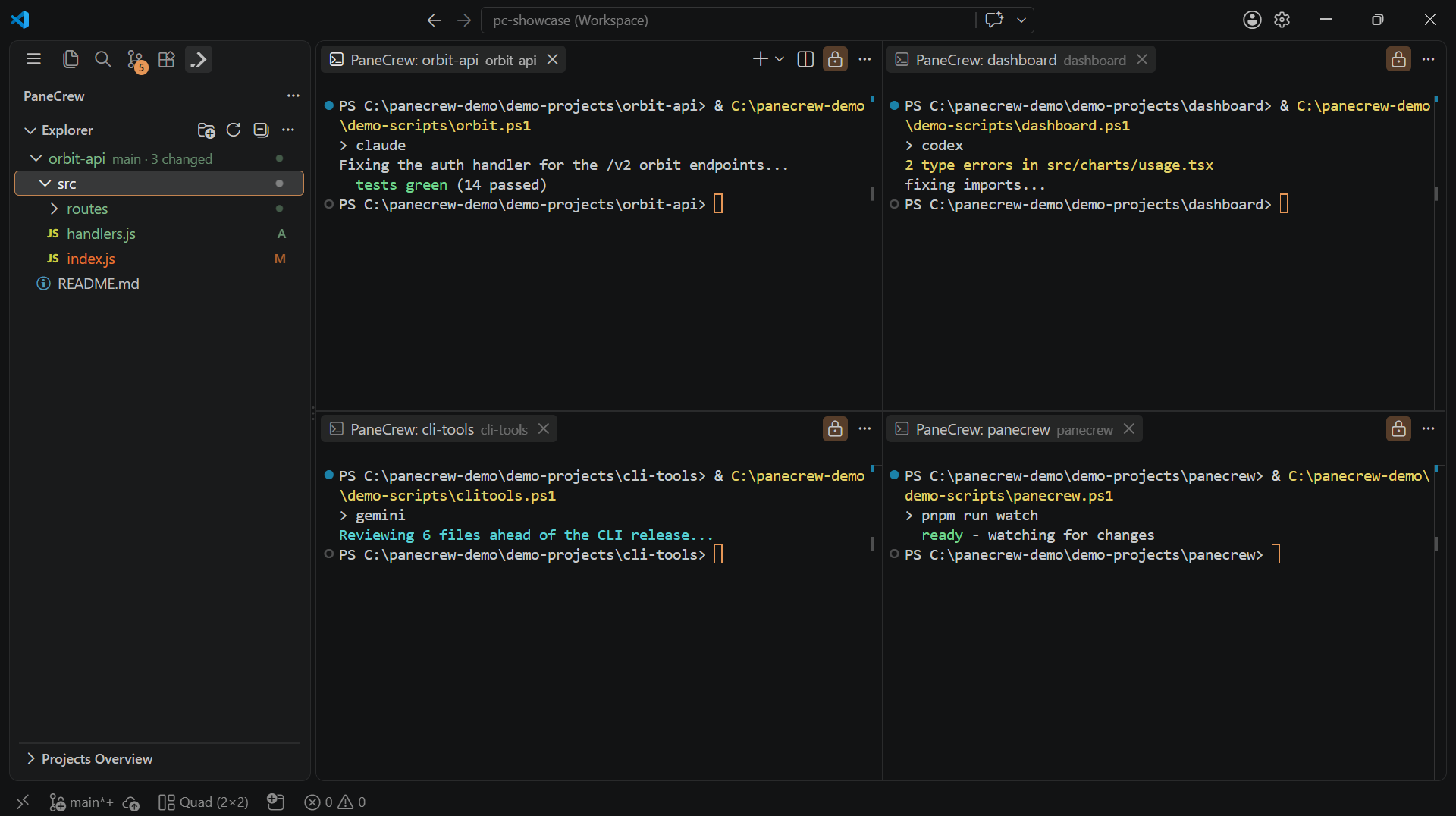
What you get after adding a few folders: the PaneCrew icon in the activity bar, its explorer, and a live grid.
The 2×2 quad shown above is just the default — click the layout item in the status bar (or run PaneCrew: Set Grid Template…) to switch between seven layouts, from one full-width pane up to four at once. See the interface tour for the full list.
Developing PaneCrew itself
pnpm install
pnpm --filter panecrew --dir apps/extension run compile
Press F5 in VS Code (with apps/extension open) to launch an Extension Development Host, or runpnpm --filter panecrew --dir apps/extension run watch for incremental builds.