Interface tour
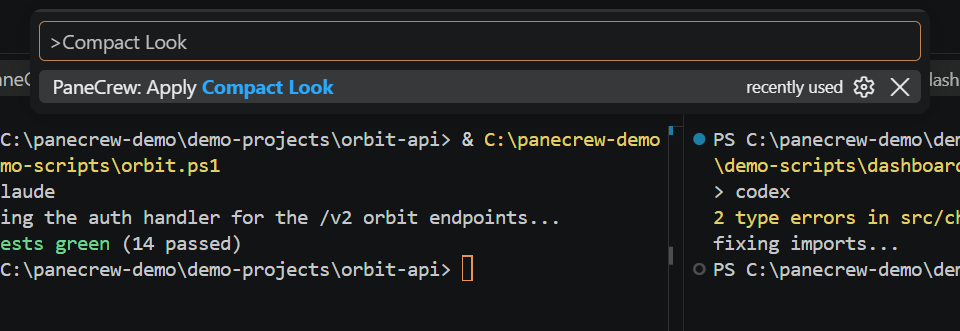
PaneCrew adds two things to VS Code: an explorer that follows your focus, and a grid of terminals arranged across your workspace. Here's what each part does.
PaneCrew explorer
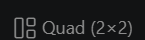
A dedicated view in its own activity-bar container — click the PaneCrew icon to open it. One subtree per workspace folder, not one giant merged tree.
Git status decorations
Modified, added, untracked, and deleted files and folders are badged and colored, based on git status per workspace-folder root.
Terminal grid
PaneCrew: Open Project Grid… and PaneCrew: Add Folder to Grid… add a workspace folder and give it its own terminal, arranged automatically via VS Code's editor-group layout.
Layouts
The grid isn't stuck at 2×2 — click the layout item in the status bar (or run PaneCrew: Set Grid Template…) to switch between seven arrangements, from a single full-width pane up to a 2×2 quad or a row of four. Save any arrangement as a named preset to reload later.
A real terminal
Every pane is a real, PTY-backed VS Code terminal. Any CLI tool runs here exactly as it would in your own shell — Claude Code, Codex, Gemini CLI, GitHub Copilot CLI, OpenCode, or a plain shell.
The focus-following explorer, live
Switch to a different terminal or editor tab and the PaneCrew explorer automatically selects, expands, and reveals that pane's owning workspace folder — no manual re-navigation.
Compact Look
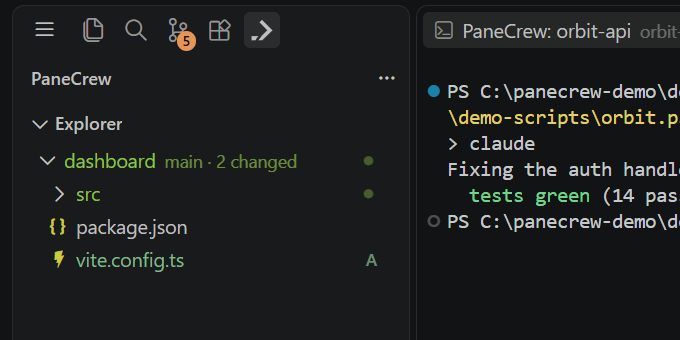
PaneCrew: Apply Compact Look hides secondary chrome (status bar, minimap by default) to make room for more panes. The activity bar always stays visible, by design.